

⏱ 10 min read
The Complete Guide to Building a Productive Home Office Without Breaking the Bank
Many remote workers make the same expensive mistake: they either cobble together a workspace with whatever’s lying around, then wonder why their productivity suffers, or they spend excessively on a standing desk before understanding how they actually work. Both approaches can lead to wasted money and frustration. The real challenge isn’t finding the “perfect” setup. It’s matching your equipment choices to your specific work patterns and constraints. A freelance graphic designer may need different tools than a software developer who spends hours in video meetings. Your budget matters, but so does understanding what drives your productivity and what merely looks impressive on social media. This isn’t about creating a magazine-worthy home office. It’s about building a workspace that allows you to focus entirely on your work. You’ll walk away with a clear framework for making equipment decisions based on your actual needs, not marketing promises or social media inspiration.

The Foundation Formula: Desk, Chair, Light
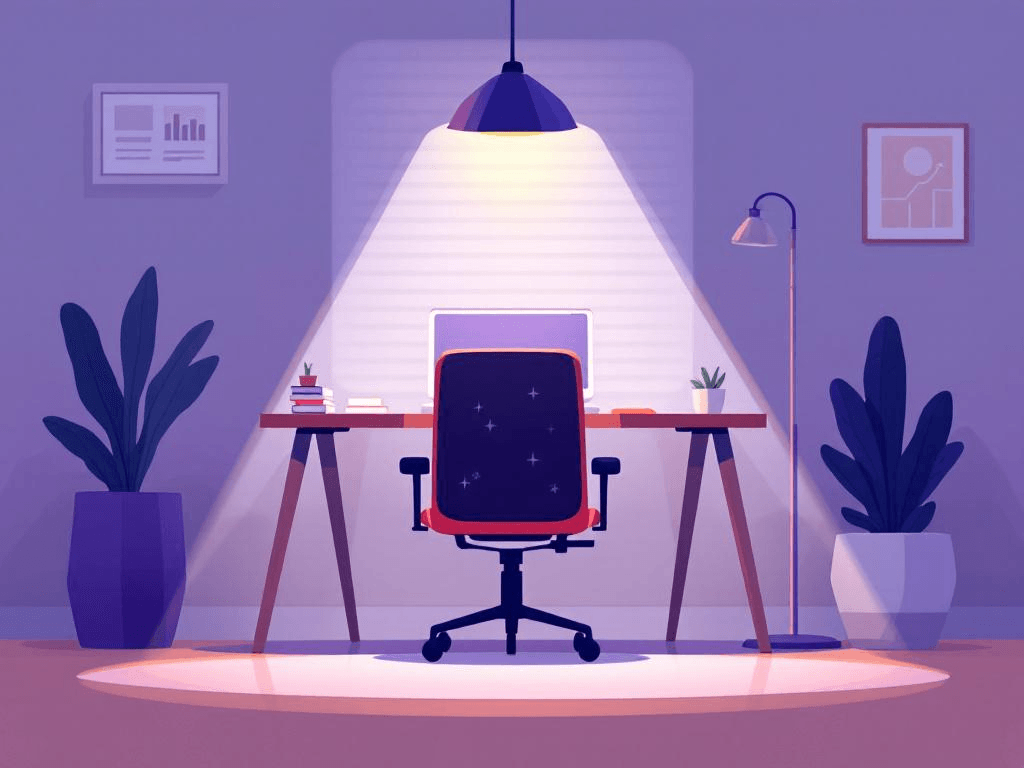
Three items determine a significant portion of your daily comfort and productivity: your desk, your chair, and your lighting. Everything else is optimization. If you get these wrong, no amount of expensive accessories will compensate for discomfort and eye strain.
The critical insight many people miss: these aren’t separate purchases; they’re an integrated system. Your desk height affects your chair adjustments. Your lighting placement depends on your desk orientation. Your chair’s armrest height influences your keyboard position. Plan them together, not individually.
Start with your chair, typically. Poor seating can create cumulative stress that affects your work quality. A lower-cost chair that leaves you shifting positions frequently may end up costing more than a higher-quality ergonomic chair when you factor in lost focus and potential back problems.
Decision framework for chair selection: Under $200: The IKEA Markus provides reasonable lumbar support and adjustability. Between $200-400: The Steelcase Series 1 offers better materials and more precise adjustments. Above $400: The Steelcase Series 2 or Herman Miller Sayl provide professional-grade ergonomics that may last for years. Avoid gaming chairs marketed to professionals. They often prioritize aesthetics over ergonomics and are designed for short gaming sessions, not extended workdays.
Desk selection should follow function, not form. Measure your space first, then determine your work style. Do you spread out papers and multiple devices, or work primarily on a laptop? Do you need to switch between sitting and standing throughout the day?
Decision framework for desk selection: For static setups, the IKEA Bekant series ($80-120) provides durable surfaces and clean aesthetics. Depth matters more than width; you typically need at least 24 inches from screen to eyes for proper viewing distance. For sit-stand capability, desktop converters like the Jarvis Bamboo ($300-400) add flexibility without rewiring your space. Full electric desks like the Uplift V2 ($600-800) may provide smoother transitions and more stability but require dedicated space and setup.
Lighting can address issues you didn’t know you had. Your monitor’s blue light filter helps, but it doesn’t address the fundamental issue: insufficient ambient light can create eye strain as your pupils constantly adjust between your bright screen and dark surroundings. Position your desk perpendicular to windows when possible, never facing or backing them. Add bias lighting behind your monitor; a simple LED strip may provide dramatic eye strain reduction for a reasonable cost. For task lighting, the BenQ ScreenBar ($100) can help eliminate monitor glare while providing focused illumination exactly where you need it.
The lighting hierarchy: bias lighting first (reduces eye strain), task lighting second (enables detail work), ambient lighting third (creates a comfortable environment).
Tech Infrastructure That Actually Matters

Your internet connection and audio/video setup can significantly impact how others perceive your professionalism. Poor audio may make you sound less competent regardless of your actual expertise; video lag can make you appear unprepared even when you’re not. Many people focus on download speeds and overlook upload speeds, which may matter more for video calls. You typically need at least 10 Mbps upload for reliable HD video calls; 25 Mbps if multiple people in your household are working remotely. Test your speeds at different times; many connections slow significantly during peak hours. If your internet is inconsistent, a mesh network system like Eero Pro 6 ($200-400) may help resolve connection drops better than upgrading your service plan.
Audio hierarchy follows a clear progression: Built-in laptop microphones often sound poor. Bluetooth headsets can introduce lag and compression. USB microphones like the Audio-Technica ATR2100x-USB ($79) provide broadcast-quality sound. XLR setups with audio interfaces offer professional control but require more complexity. Most remote workers may find that stopping at the USB microphone level is sufficient unless audio is central to their work. The microphone upgrade can yield immediate benefits. Colleagues may stop asking you to repeat yourself. Clients might perceive you as more professional. You may feel more confident speaking up in meetings. This isn’t vanity; clear communication can directly affect your career trajectory. Share a Loom walkthrough for clarity. Record your first Loom for free.
Camera positioning matters more than camera quality. Your laptop’s built-in camera is often adequate if positioned at eye level with good lighting. A $100 Logitech C920 mounted on a monitor arm may outperform a more expensive camera positioned poorly. The lighting setup you’ve already invested in will enhance any decent camera’s appearance. Monitor configuration depends largely on your work type. Research suggests that dual monitors can increase productivity for tasks requiring reference materials or comparison. A single large 32-inch 4K monitor may provide similar screen real estate with fewer cables and a cleaner aesthetic. For creative work requiring color accuracy, investing in monitor calibration tools ($150-300) can be beneficial regardless of which configuration you choose. Monitor arms can be more valuable than the monitors themselves because they enable proper ergonomic positioning and free up desk space. A $100 dual monitor arm may provide more value than upgrading from a good monitor to a great one.
Workflow-Specific Customizations
Generic advice often falls short because different types of work create different demands on your workspace. A data analyst may need multiple screens for spreadsheets and dashboards. A writer could benefit from distraction elimination tools. A designer typically requires color-accurate displays and input devices.
Creative professionals working with graphics, video, or design may need color-accurate monitors calibrated to industry standards. The Dell UltraSharp series or BenQ PhotoVue line often provides 99% sRGB coverage at reasonable prices. Graphics tablets like the Wacom Intuos Pro ($200-400) can speed up design work significantly once you adapt to the workflow. Storage becomes critical; consider investing in fast external SSDs and automated backup systems rather than relying solely on cloud storage for large files.
Deep work specialists (programmers, writers, researchers) may benefit most from distraction elimination. Noise-canceling headphones like the Sony WH-1000XM4 ($350) or Bose QuietComfort 45 ($329) can create focused environments. Apps like Freedom or Cold Turkey can block distracting websites during work sessions. Some individuals may find it helpful to create separate user accounts on their computers, switching to a “work mode” that only has necessary applications installed. Environmental modifications can help maintain focus. Blackout curtains may eliminate visual distractions. White noise machines or brown noise apps can mask household sounds. Plants like snake plants or pothos may improve air quality while requiring minimal maintenance.
Meeting-heavy remote employees may need quick-change capabilities. Professional backdrops (physical ones, not virtual) can eliminate distractions and create consistency across different times of day. A simple gray or navy backdrop ($50-100) can look more professional than virtual backgrounds, which often glitch and appear artificial. Adjustable lighting becomes crucial since you might be on calls from early morning to late evening. Cable management isn’t just aesthetic; it can enable quick transitions between different work modes. Under-desk cable trays and magnetic cable holders may allow you to switch from focused work to presentation mode without needing to crawl around unplugging things.
Digital nomads face unique constraints around portability and international compatibility. Consider investing in a compact laptop stand, external keyboard, and mouse rather than trying to work directly on your laptop. A portable monitor like the ASUS ZenScreen ($200-300) can provide dual-screen capability anywhere. Universal power adapters and VPN services may become essential infrastructure rather than nice-to-haves. Consider shipping costs and replacement strategies when choosing equipment. A $300 monitor that’s easily replaceable worldwide may make more sense than a $600 specialty monitor that takes weeks to ship internationally.
The Hidden Productivity Multipliers
Small environmental factors can compound into significant productivity gains or losses. Temperature, air quality, and organization systems work in the background but can affect your cognitive performance throughout the day. Ergonomic accessories often provide more comfort improvement per dollar than major equipment upgrades. A keyboard tray that positions your hands correctly ($50-100) may eliminate wrist strain. An adjustable footrest ($30-60) can improve posture for shorter individuals. A document holder ($20-40) may prevent neck strain when referencing papers. These items seem minor but can address specific pain points that accumulate over hours of work.
Monitor positioning tools deserve special attention. A monitor riser can position your screen at eye level, preventing neck strain, but adjustable monitor arms provide more flexibility and free up desk space for other items. The ability to pull your monitor closer for detailed work, then push it back for video calls, can improve both comfort and appearance on camera.
Temperature can affect cognitive performance more than many people realize. The optimal range for mental work is typically between 68-72°F (20-22°C). Many home offices may run too warm, leading to afternoon fatigue that people might attribute to other causes. A small desk fan ($30-50) or space heater ($50-100) can provide independent climate control without adjusting the whole house. Air quality improvements can provide measurable cognitive benefits. Air purifiers with HEPA filters ($100-300) may remove particles that cause fatigue and allergies. Certain plants (snake plants, spider plants, peace lilies) can improve air quality rather than just looking decorative. Maintaining humidity levels between 40-60% can help prevent dry eyes and respiratory irritation; a small humidifier ($50-100) may be helpful in dry climates or during winter heating seasons.
Organization systems can prevent the constant micro-stresses of searching for items or dealing with clutter. Cable management solutions like under-desk trays ($30-50) and magnetic cable holders ($15-25) can eliminate the tangle of cords that accumulate around any desk. Document storage systems, whether physical filing or digital organization tools, can reduce the mental overhead of finding information quickly. Identify which environmental factors affect your specific work patterns. If you’re frequently adjusting your chair or searching for cables, those small frustrations may add up to significant productivity losses over time.
Your 90-Day Setup Strategy
Many people struggle because they try to build their perfect office in a weekend shopping spree. Instead, consider a phased approach that lets you learn what actually matters for your work style while spreading costs over time.
Phase 1 (Days 1-30): Foundation Only
Start with just three items: desk, chair, and basic lighting. This isn’t about finding perfect solutions; it’s about establishing a baseline that doesn’t actively hinder your productivity. Spend your first week working in your new setup without making any changes. Notice what bothers you most: back pain from poor seating, eye strain from inadequate lighting, or cramped workspace from an unsuitable desk size. These observations can guide your Phase 2 investments.
Budget allocation for Phase 1: 60% chair, 30% desk, 10% basic lighting. If you must choose only one item, prioritize the chair. You can work from a kitchen table temporarily, but extended hours in a poor chair can create problems that compound daily.
Phase 2 (Days 31-60): Address Your Biggest Pain Point
By now you should have a better understanding of what’s limiting your productivity most. Common issues and potential solutions:
- Constant back/neck adjustments → Ergonomic accessories (footrest, keyboard tray, monitor arm)
- Eye strain or headaches → Improved lighting setup (bias lighting, task lamp, window treatment)
- Audio problems in calls → USB microphone upgrade
- Feeling cramped or disorganized → Storage solutions and cable management
- Difficulty focusing → Environmental controls (noise management, visual distractions)
Only address one major issue per month. Multiple simultaneous changes can make it difficult to identify what’s actually helping.
Phase 3 (Days 61-90): Workflow Optimization
Now optimize for your specific work patterns. This is where workflow-specific customizations can be beneficial:
- Multiple monitor setup for reference-heavy work
- Standing desk converter if you discovered you prefer variety
- Specialized input devices for creative work
- Advanced audio/video setup for presentation-heavy roles
Common Implementation Mistakes to Avoid:
- Don’t buy everything at once. You may waste money on items that seem important but don’t match your actual work patterns. The $200 document scanner that seemed essential might sit unused if you realize you prefer digital-first workflows.
- Don’t upgrade working systems. If your current monitor meets your needs, there’s no need to replace it just because you have budget remaining. Put that money toward addressing actual pain points or save it for future needs.
- Don’t solve workflow problems with equipment. No amount of gear will fix poor time management, unclear priorities, or communication issues with clients. Address systems and processes first, then support them with appropriate tools.
Budget Reality Check:
- Minimum effective setup: $300-500 (basic desk, decent chair, task lighting)
- Comfortable full-time setup: $800-1,200 (quality fundamentals plus workflow-specific tools)
- Professional/premium setup: $1,500-2,500 (top-tier ergonomics and specialized equipment)
Track your return on investment. If you’re earning a reasonable hourly rate and working from home permanently, productivity and health improvements may justify premium investments within six months. For part-time remote work or lower hourly rates, focus on the minimum effective setup first.
Your Next Step
Identify your single biggest frustration with your current setup right now. Not the most impressive upgrade you could make; the friction point that bothers you most during your workday. Is your back aching by 3 PM? Consider upgrading your chair or adding a footrest. Squinting at your screen? Adding bias lighting behind your monitor might help. Apologizing for audio issues? A USB microphone could be a worthwhile investment. Make that one change. Work with it for two weeks. Notice what improves and what remains frustrating. Only then move to your next upgrade. This approach can cost less, waste less money on equipment you won’t use, and build a workspace that actually supports your specific work patterns rather than matching someone else’s ideal setup.